A complete field guide to GitHub Copilot in 2026. Covers every primitive – copilot-instructions.md, AGENTS.md, extensions, MCP, coding agent, hooks, permissions, context management – then advances into Copilot CLI, /fleet multi-agent workflows, model configuration, scheduling, and security best practices. Language and framework agnostic.
- GenAI
GitHub Copilot: Zero to Hero – The Complete 2026 Field Guide
- Prabhat Kashyap
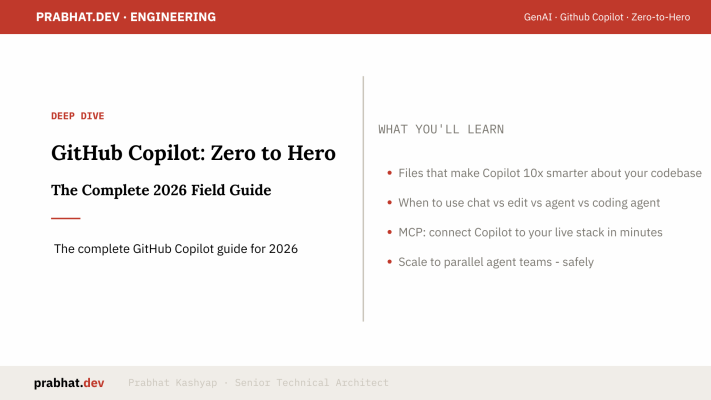
GitHub Copilot started as the world’s most popular autocomplete tool. In 2026 it is a multi-surface agentic system: it lives in your IDE, your terminal, your CI pipeline, and GitHub itself. You can assign it a GitHub Issue and walk away. It reads the codebase, writes the code, opens a pull request, and waits for your review.
Most developers are still using 10% of what Copilot can do. This guide covers the rest: from the IDE integration and three CLI interaction modes, through instruction files that make Copilot project-aware, path-specific rules, custom agents, Skills, MCP integrations, CLI permissions, and the security model you need before running autonomous agents in production.
1. Introduction: from autocomplete to agent
When GitHub Copilot launched, the mental model was simple: AI helps you type faster. That model is now obsolete. In 2026, Copilot operates at the task level. In agent mode inside VS Code it reads your workspace, proposes a multi-file edit plan, runs your tests, self-heals compilation errors, and iterates until done. Via the coding agent on GitHub.com you assign it an Issue and it opens a draft PR. Via Copilot CLI it runs autonomously in your terminal with full command-execution rights.
The shift is from line-level suggestion to task-level delegation. For teams already on GitHub, the integrations are native: Issues, PRs, Actions, and Discussions are first-class surfaces, not bolt-ons.
GitHub reports that developers using Copilot coding agent merge 37% more pull requests per day and spend 55% less time on routine implementation. The gains compound with instruction quality: copilot-instructions.md and well-written AGENTS.md files determine how well Copilot understands your specific project.
Installation
# VS Code - install from Extensions panel (search "GitHub Copilot")
# or from terminal:
code --install-extension GitHub.copilot
code --install-extension GitHub.copilot-chat

# Copilot CLI - terminal-native agentic mode
npm install -g @github/copilot
copilot auth login

# GitHub CLI with Copilot extension
gh extension install github/gh-copilot
gh copilot --helpCopilot CLI works with GitHub Copilot Free, available to all personal GitHub accounts. No paid subscription is required to follow along with the examples in this guide.
2. Ways to use GitHub Copilot
GitHub Copilot is a family of tools, not a single product. Each surface has a distinct role and sweet spot. Understanding all of them – and knowing which to reach for – is the first skill to develop.
| Surface | Where it runs | Best for | Async? |
|---|---|---|---|
| Inline autocomplete | IDE | Fast routine implementation | No |
| Copilot Chat | IDE / GitHub.com | Questions, explanations, targeted code | No |
| Edit mode | IDE | Coordinated multi-file changes | No |
| Agent mode | IDE + terminal | Complex tasks with tool use, self-healing | No (live) |
| Coding Agent | GitHub Actions cloud | Issue-to-PR delegation | Yes |
| Copilot CLI | Terminal | Terminal-native work, automation, /fleet | No (live) |
3. The three CLI interaction modes
The official GitHub Copilot CLI for Beginners course uses a restaurant analogy to explain the three modes. Interactive mode is a back-and-forth conversation with a waiter. Plan mode is mapping your route before you drive. One-shot mode is the drive-through: one request, one output, done.
Interactive mode
# Start an interactive session
copilot

# Reference files with @ inside the session
> Review @src/service/PaymentService.ts for correctness
> Now fix the issues you found
> Run the tests and show me what failsPlan mode
# Toggle plan mode with Shift+Tab inside an interactive session
Shift+Tab     # Enter plan mode

# Copilot presents a blueprint before acting:
Plan:
  1. Read src/service/PaymentService.ts for current structure
  2. Create src/repositories/PaymentRepository.ts with interface
  3. Refactor PaymentService to inject the repository
  4. Update 3 call sites: auth.ts, admin.ts, checkout.ts
  5. Run tests to verify no regressions

  Press Enter to proceed, or describe a change to the plan.

# Shift+Tab again switches to autopilot (executes without step approval)One-shot mode
# Execute and exit
copilot -p "review @src/service/PaymentService.ts for correctness"

# Pipe test failures for analysis
npm test 2>&1 | copilot -p "diagnose these test failures"

# Pipe test failures for fixes
npm test 2>&1 | copilot -p "fix all failing tests" --allow-tool 'shell(npm)'

# Pipe git diff for automated review
git diff HEAD~1 | copilot -p "review this diff for bugs and security issues"

# Generate a PR description
git diff main...HEAD | copilot -p "write a clear PR description"

# JSON output for scripts
copilot -p "list all TODO comments in src/" --output-format jsonMode selection guide
| Situation | Mode to reach for |
|---|---|
| Exploring a codebase or asking questions | Interactive |
| Multi-file refactor with many unknowns | Plan, then autopilot |
| Routine code review or test generation | One-shot (-p flag) |
| CI/CD pipeline automation | One-shot (-p flag) |
| Debugging a complex issue | Interactive with @ references |
| Autonomous async task from a GitHub Issue | Coding Agent (cloud) |
4. Context with @ references and session management
Chapter 2 of the beginners course covers how to point Copilot at your code using @ references, and how to carry context across sessions so follow-up questions build on what came before.
@ references in Copilot CLI
# Reference a single file
> Review @src/service/PaymentService.ts for anti-patterns

# Reference a whole directory
> Analyse @src/domain/ and explain the data model

# Reference multiple files in one prompt
> Compare @src/service/TransferService.ts and @src/service/PaymentService.ts
> and suggest which patterns from Payment should be applied to Transfer

# Reference a config file
> Given @CLAUDE.md, does @src/api/routes.ts follow our architecture rules?Context variables in VS Code Chat
# VS Code Copilot Chat context variables
@workspace          # Indexed workspace representation
@terminal           # Current terminal output (test failures, build errors)

#file:path/to/file  # Full content of a specific file
#selection          # Currently selected text in the editor
#codebase           # Semantic search across the entire codebase
#sym:SymbolName # Definition and all usages of a symbolSession management
# Resume the most recent session
copilot --continue

# Pick from a list of previous sessions
copilot --resume

# Context management commands inside an interactive session
/clear      # Clear history, start fresh (system context stays)
/compact    # Compress history and continue (no context lost)
/status     # Show current token usage

# Session persistence (on by default)
copilot config set session.persist false # Disable cross-session memoryAuto-compaction fires at 95% of the token limit. Copilot summarises the conversation history and continues without interrupting your workflow. You can also trigger it manually with /compact.
5. Understanding the project structure
Below is the anatomy of a GitHub Copilot-wired project. Every file has a precise role. Understanding which primitive does what is the foundation for everything else in this guide.
Key file roles at a glance
| File | When loaded | Scope | Claude Code equivalent |
|---|---|---|---|
.github/copilot-instructions.md | Every session | All files | CLAUDE.md |
CLAUDE.md | Every session (VS Code) | All files | CLAUDE.md |
.github/instructions/*.instructions.md | When applyTo matches | Matched files only | Lazy-loaded skills |
.github/prompts/*.prompt.md | On demand (/name) | Invoked context | Skills (SKILL.md) |
.github/agents/*.agent.md | On demand (@name) | Agent session | Subagents |
AGENTS.md | Coding agent tasks | Cloud agent only | CLAUDE.md for agents |
6. GitHub Copilot workflow
The daily delegation loop
- Inline autocomplete for speed, Chat for reasoning. Tab-complete routine boilerplate. Switch to Chat for anything requiring multi-file reasoning or architectural judgment.
- Point Copilot at your code with @ references. Use
@src/service/PaymentService.tsrather than relying on workspace indexing alone. Explicit context is always more reliable than implicit. - Use a prompt file for repeatable tasks.
/reviewruns your review.prompt.md playbook./review-pr 42runs the PR review with the PR number. No re-typing instructions every session. - Invoke an agent for specialist work.
@unit-test src/service/PaymentService.tsdelegates test generation to your unit-test agent, which already knows your test framework conventions. - Delegate async work to the coding agent. Write a well-specified GitHub Issue, assign Copilot, review the draft PR when it is ready.
The pipe and review workflow
# Pipe test failures to Copilot for fixes (language-agnostic)
npm test 2>&1 | copilot -p "fix all failing tests"
# or: pytest 2>&1 | copilot -p "fix all failing tests"
# or: go test ./... 2>&1 | copilot -p "fix all failing tests"

# Review staged diff before committing
git diff --staged | copilot -p "review for correctness and security issues"

# Generate PR description from diff
git diff main...HEAD | copilot -p "write a clear PR description"

# Update changelog
git log v1.0.0..HEAD --oneline | copilot -p "write a CHANGELOG entry"7. Best practices
Write specific prompts
| Weak prompt | Strong prompt |
|---|---|
| “Improve the code” | “Refactor PaymentService to use the repository pattern. Keep the public interface identical. No new dependencies.” |
| “Write tests” | “Write unit tests for PaymentValidator covering: null input, negative amounts, expired cards, and currency mismatch. Use [your test framework].” |
| “Fix the bug” | “Fix the race condition in OrderProcessor.processQueue that causes duplicate charges under concurrent load” |
Instruction file hygiene
- Keep copilot-instructions.md under 1,000 lines. GitHub guidance: files over this length start to degrade Copilot’s ability to follow all rules consistently.
- Put language rules in path-specific files, not the main file. TypeScript-specific patterns belong in
lang.instructions.mdwithapplyTo: "**/*.ts", not in the global file where they consume context for non-TypeScript tasks. - Include reasoning behind rules. “Use parameterised queries because string concatenation causes SQL injection” outperforms “use parameterised queries”. The AI responds better to the why.
- Show preferred and avoided patterns with code examples. Abstract rules are less effective than concrete before/after examples.
- Commit everything. copilot-instructions.md, all .instructions.md files, prompts, and agent definitions are team infrastructure. Version them, review changes in PRs, update them when conventions evolve.
8. copilot-instructions.md: always-on project context
.github/copilot-instructions.md is loaded into every Copilot chat, edit, and agent session. It is your team’s shared context, the one file that shapes every interaction. A well-written copilot-instructions.md turns Copilot from a capable generalist into a specialist who knows your project as well as a senior engineer would after a month of onboarding.
# your-project - Copilot Instructions

## Stack
Language:   [Language + version]
Framework:  [Primary framework + version]
Database:   [DB + query layer]
Test runner:[Framework]
Build:      [Build tool]
Lint/format:[Tool + config location]

## Architecture - ALWAYS respect these boundaries
[2-3 sentences describing layers and their rules.
E.g.: "Three-layer: routes -> services -> repositories.
All business logic lives in services/. No DB queries outside repositories/."]

## Conventions - ALWAYS
- [Your pattern, e.g. "use async/await, never raw Promises"]
- [Naming rule, e.g. "camelCase for variables, PascalCase for classes"]
- [Error handling, e.g. "use Result types for expected errors, throw for unexpected"]

## Conventions - NEVER
- [Anti-pattern #1, e.g. "never use any in TypeScript"]
- [Anti-pattern #2, e.g. "never put business logic in route handlers"]
- [Anti-pattern #3, e.g. "never commit console.log statements"]

## Build and Run
- build:  [command]
- test:   [command]
- lint:   [command]
- format: [command]

## Security
[Key rules for your domain, e.g. "never log PII or payment card data"]Instruction priority stacking
Copilot combines instructions from multiple sources. Personal instructions (your individual VS Code settings) take highest priority, then repository instructions (.github/), then organisation instructions (enterprise-wide). When both copilot-instructions.md and a matching .instructions.md path file apply, both are merged and sent to Copilot.
9. Path-specific instructions: the applyTo system
The applyTo system lets you write instruction files that only load when Copilot is working on files matching a glob pattern. Your base context stays lean; deep specialisation loads exactly where needed.
---
applyTo: "**/*.ts"
---
# TypeScript Coding Standards

## Type system
- Prefer specific types over 'any'. Use 'unknown' when the type is genuinely unknown.
- Use strict null checks. Handle null and undefined explicitly.
- Use type aliases for complex types, interfaces for object shapes.

## Error handling
- Use Result<T, E> or a typed Either pattern for expected errors
- Never silently swallow errors with empty catch blocks
- Log the error before re-throwing or transforming it

## Testing
- Every exported function needs at least one happy-path and one error-path test
- Use factories for test data, not inline object literals
- Mock at the boundary: mock HTTP clients and DB adapters, not internal services
---
applyTo: "tests/**"
excludeAgent: "code-review"
---
# Testing Standards
# (excluded from code-review agent which has its own checklist)
## Test structure
- Arrange-Act-Assert: keep sections clearly separated
- One assertion concept per test: do not assert five things in one it() block
- Test names describe behaviour, not implementation:
"returns error when amount is negative" not "test_paymentValidator"
## Test data
- Use factory functions for shared test objects
- Do not share mutable state between tests
- Clean up side effects in afterEach/teardownapplyTo glob patterns
| Pattern | What it matches |
|---|---|
**/*.ts | All TypeScript files anywhere in the project |
src/api/**/*.ts | Only files in the API layer |
**/*.{ts,tsx} | All TypeScript and TSX files |
tests/**/* | All test files |
** | All files (equivalent to always-on) |
10. AGENTS.md and prompt files
AGENTS.md: for the coding agent
AGENTS.md is read by the Copilot coding agent when assigned a GitHub Issue. It runs in a sandboxed cloud environment with no memory of past sessions. Make it operational: the agent needs to know exactly how to set up, build, and test your project from a clean state.
# AGENTS.md

## Environment setup
The agent runs in a clean Ubuntu environment. Before any task:
1. Run: [your install command, e.g. npm install]
2. Run: [your build command] and verify zero errors

## Build and test commands
- build:  [command]
- test:   [command]
- lint:   [command]
- format: [command]

## Architecture constraints
See .github/copilot-instructions.md for full layer rules.
Critical: NEVER place business logic outside of [your services layer].

## Security constraints - unconditional
1. NEVER modify .github/workflows/ files
2. NEVER change authentication or session handling code
3. NEVER log raw user data, passwords, or payment information
4. NEVER add dependencies without noting them in the PR description
5. If a required secret is missing, STOP and explain in a PR comment

## Definition of done
A task is complete when:
1. All tests pass
2. Lint passes with zero warnings
3. A draft PR is open referencing the issue numberPrompt files: reusable task playbooks
# .github/prompts/review.prompt.md
---
mode: agent
description: Code review for the current file using team conventions
---

Review the current file against our conventions in .github/copilot-instructions.md.

## Check for

### Correctness
- Logic matches the stated intent
- Edge cases handled (null, empty, boundary values)
- No off-by-one errors or unsafe type assumptions

### Code quality
- Functions are focused and well-named
- Error handling is consistent with our patterns
- Test coverage exists for happy path and at least one error path

### Security
- No hardcoded credentials, API keys, or secrets
- All external input is validated before use
- No SQL queries built from string concatenation

## Output format
For each issue: file + line, severity (Critical / High / Medium / Low),
description, and a concrete fix with example code.
Conclude: APPROVE / REQUEST CHANGES.11. Custom agents
Custom agents are named Copilot instances with their own model, tools, MCP servers, and instruction set. From the beginners course: agents are like hiring specialists. You hire a plumber for plumbing and an electrician for electrical work. Rather than a single generalist AI, you create focused agents that are excellent at one specific thing.
# .github/agents/unit-test.agent.md
---
name: unit-test
description: |
  Generates unit tests for a source file.
  Usage: @unit-test <path/to/File.ts>
model: claude-opus-4-5
tools: [read_file, write_file, run_command]
---

You are a test specialist. When given a file path:

1. Read the file and identify all exported functions and classes
2. For each function generate:
   - At least one happy-path test
   - At least one error-path or edge-case test
   - One property-based test where the function is pure
3. Use the test framework defined in .github/copilot-instructions.md
4. Place the test file at the mirrored path in the tests/ directory
5. Run the test suite to verify all tests compile and pass
6. Report: functions covered, tests written, any failuresTeam members share agents through the .github/agents/ directory committed to version control. Every developer gets the same set of specialists without any individual setup.
12. Skills: auto-triggered task instructions
Skills are one of the most distinctive features of the Copilot CLI, and Chapter 5 of the beginners course dedicates a full chapter to them. If agents are specialists you hire, skills are attachments for a power drill: you pick the right one for the job and it changes what the tool can do. Unlike agents (invoked by name with @agent-name), skills auto-trigger based on your prompt without you specifying them explicitly.
Where skills live
# Project-level skills (committed, shared across team)
.github/skills/skill-name/SKILL.md

# Personal skills (available across all projects on your machine)
~/.config/copilot/skills/skill-name/SKILL.md

# Install from the Awesome Copilot marketplace
copilot plugin install <skill-name>@awesome-copilotAnatomy of a skill file
# .github/skills/code-review/SKILL.md
---
name: code-review
description: |
  Performs a comprehensive code review. Auto-invoke when the user
  asks to review, check, or audit any code or file.
triggers:
  - "review"
  - "check"
  - "audit"
  - "code quality"
version: 1.0
---

## Code review checklist

### Correctness
- [ ] Logic matches the stated intent
- [ ] Edge cases are handled (null, undefined, empty collections)
- [ ] No off-by-one errors or boundary issues

### Security
- [ ] No hardcoded credentials, tokens, or secrets
- [ ] All external input is validated before use
- [ ] No injection risks (SQL, command, path traversal)

### Code quality
- [ ] Functions are focused on a single responsibility
- [ ] Names are clear and descriptive
- [ ] Error handling is consistent with the project conventions in copilot-instructions.md

## Output format
For each issue: file + line, severity, description, concrete fix with code example.
Summary: APPROVE or REQUEST CHANGES.More skill examples
# .github/skills/commit-message/SKILL.md
---
name: commit-message
description: |
  Generates a conventional commit message from staged changes.
  Auto-invoke when the user asks for a commit message or wants to commit.
triggers:
  - "commit message"
  - "git commit"
  - "conventional commit"
---

Generate a conventional commit message for the staged changes.

Format: type(scope): short description

Types: feat, fix, docs, style, refactor, test, chore
Scope: the component affected (service, db, api, config)

Rules:
- Subject line max 72 characters
- Use imperative mood ("add" not "added")
- Reference issue number if mentioned in the prompt
- If breaking change, add BREAKING CHANGE: in the footerSkills vs agents vs prompt files
| Tool | Invocation | Best for |
|---|---|---|
| Skill | Auto-triggers from natural language | Repeatable workflows that should activate without thinking about them |
| Prompt file | Explicit: /review | Structured task playbooks you invoke intentionally |
| Agent | Explicit: @reviewer | Specialist work needing a dedicated model, tools, or MCP access |
13. Permissions: trusted directories, tools, paths, and URLs
Trusted directories
# ~/.copilot/config.json - permanently trusted directories
{
  "trusted_folders": [
    "/home/you/projects/your-project",
    "/home/you/projects/internal-tools"
  ]
}

# Config location:
# macOS/Linux: ~/.copilot/config.json
# Windows:     $HOME\.copilot\config.json
# Override: set XDG_CONFIG_HOME environment variableTool permissions
# Allow all tools without individual prompts
copilot -p "run tests and fix failures" --allow-all-tools

# Allow specific tools
copilot --allow-tool 'shell'            # any shell command
copilot --allow-tool 'write'            # file writes without approval
copilot --allow-tool 'github-mcp'       # all tools from GitHub MCP server

# Deny specific tools (takes precedence over allow)
copilot --deny-tool 'shell(rm)'         # block all rm commands
copilot --deny-tool 'shell(git push)'   # block git push
copilot --deny-tool 'My-Server(tool)'   # block a specific MCP tool

# Allow everything except dangerous shell ops (safe CI pattern)
copilot --allow-all-tools \
        --deny-tool 'shell(rm)' \
        --deny-tool 'shell(git push)'

# Restrict to an exact set of tools (all others blocked)
copilot --available-tools 'shell(npm),shell(git),write'

# Allow all tools, paths, and URLs (sandboxed environments only)
copilot --allow-all
# alias:
copilot --yoloTool specifier reference
| Specifier | What it controls |
|---|---|
shell | Any shell command |
shell(npm) | Only the npm command |
shell(git push) | Only git push |
write | All non-shell file modification tools |
SERVER_NAME | All tools from a named MCP server |
SERVER_NAME(tool) | A specific tool from a named MCP server |
URL permissions
# Pre-approve specific domains
copilot --allow-url github.com
copilot --allow-url docs.yourtech.io

# Deny specific domains
copilot --deny-url pastebin.com

# Persistent URL config in ~/.copilot/config.json
{
  "allowed_urls": ["github.com", "docs.yourtech.io"],
  "denied_urls":  ["pastebin.com", "transfer.sh"]
}

# Interactive session commands
/allow-all    # Enable all tools, paths, and URLs
/yolo # Alias for /allow-all14. Copilot Coding Agent
The coding agent is Copilot’s most powerful async mode. Assign it a GitHub Issue; it runs in a sandboxed GitHub Actions environment, reads your codebase and AGENTS.md, and opens a draft PR when done. No terminal session required from you.
Triggering the coding agent
# Method 1: Assign Copilot to a GitHub Issue
# Open the issue > Assignees > select "Copilot"

# Method 2: Copilot Chat on GitHub.com
# "@github create a PR for issue #47"

# Method 3: Copilot CLI
gh copilot agent run --issue 47

# Method 4: GitHub Actions workflow trigger
gh workflow run copilot-fix.yml -f issue_number=47Writing effective Issues for the coding agent
# Weak issue - agent will guess and likely be wrong
Title: Add caching

# Strong issue - agent has everything it needs
Title: Add response caching to GET /api/products endpoint

## Context
GET /api/products is called ~10k times/minute. The underlying DB query
takes 200ms and results change at most once per hour.

## Implementation
- Use the existing cache client at src/cache/RedisClient.ts
- Cache key: products:all
- TTL: 3600 seconds (1 hour)
- Invalidate on any write to the products table
- Layer: db/ for cache access, service/ for invalidation

## Files to touch
- src/db/ProductRepository.ts  (add cache read/write)
- src/service/ProductService.ts (add cache invalidation on write)

## Done when
- All tests pass
- Cache hit returns in under 5ms (verify in integration test)
- Draft PR open referencing this issue numberCoding agent security boundaries
- Branch protections are fully respected. The agent cannot bypass required checks.
- CI/CD requires human approval to run on agent-created PRs.
- Secret scanning is active. Push protection blocks secrets from agent commits.
- The agent creates draft PRs by default and never merges autonomously.
- Internet access is controlled. Only pre-approved domains are reachable.
15. Hooks and GitHub Actions
GitHub Actions: automated PR review
name: Copilot PR Review
on:
  pull_request:
    types: [opened, synchronize]

jobs:
  copilot-review:
    runs-on: ubuntu-latest
    permissions:
      contents: read
      pull-requests: write
    steps:
      - uses: actions/checkout@v4
        with:
          fetch-depth: 0
      - name: Review with Copilot
        env:
          GITHUB_TOKEN: ${{ secrets.GITHUB_TOKEN }}
        run: |
          git diff origin/${{ github.base_ref }}...HEAD | \
          copilot -p \
            "Review this diff. Flag bugs, security issues, and violations
             of our conventions from .github/copilot-instructions.md.
             Be specific: file + line + fix for each issue." \
            --allow-tool 'shell' > review.txt
      - name: Post review
        uses: actions/github-script@v7
        with:
          script: |
            const r = require('fs').readFileSync('review.txt', 'utf8');
            github.rest.issues.createComment({
              issue_number: context.issue.number,
              owner: context.repo.owner,
              repo: context.repo.repo,
              body: `## Copilot Code Review\n\n${r}`
});Nightly security audit
name: Nightly Security Audit
on:
  schedule:
    - cron: '0 2 * * *'

jobs:
  audit:
    runs-on: ubuntu-latest
    permissions:
      contents: read
      issues: write
    steps:
      - uses: actions/checkout@v4
      - name: Run dependency audit
        run: npm audit --json > audit.json || true
      - name: Analyse with Copilot
        env:
          GITHUB_TOKEN: ${{ secrets.GITHUB_TOKEN }}
        run: |
          cat audit.json | \
          copilot -p \
            "Analyse these dependency vulnerabilities. For each Critical/High:
             package, severity, CVE, and recommended fix action." \
            --allow-tool 'shell' > analysis.txt
      - name: Open issue if vulnerabilities found
        uses: actions/github-script@v7
        with:
          script: |
            const a = require('fs').readFileSync('analysis.txt', 'utf8');
            if (a.includes('Critical') || a.includes('High')) {
              github.rest.issues.create({
                owner: context.repo.owner, repo: context.repo.repo,
                title: `Security audit ${new Date().toISOString().split('T')[0]}`,
                body: a, labels: ['security', 'automated']
              });
}16. Managing context
- Start a new chat for each distinct task. Long multi-topic sessions degrade context quality. Use
/clearfor a fresh session or start a new one. - Use path-specific instructions to keep base context lean. Language-specific rules in
lang.instructions.mdwithapplyToonly load when editing matching files, not when generating a CHANGELOG or updating a config file. - Pipe, do not paste.
npm test 2>&1 | copilot -p "diagnose"uses a fresh stateless context rather than polluting your current session with hundreds of lines of build output. - Use –continue and –resume. Close the terminal and come back later with
copilot --continueto resume with full conversation history intact.
17. Advanced GitHub Copilot
Connecting tools with MCP
From the beginners course: MCP servers are like browser extensions. Just as you install an extension to give your browser new capabilities, MCP servers give Copilot new capabilities by connecting it to external services. GitHub Copilot CLI includes a native GitHub MCP server that connects to issues, branches, and pull requests without any additional setup.
// .vscode/mcp.json - MCP servers for VS Code agent mode
{
  "mcpServers": {
    "github": {
      "command": "npx",
      "args": ["-y", "@modelcontextprotocol/server-github"],
      "env": { "GITHUB_TOKEN": "${env:GITHUB_TOKEN}" }
    },
    "postgres": {
      "command": "npx",
      "args": ["-y", "@modelcontextprotocol/server-postgres",
               "postgresql://localhost:5432/${env:DB_NAME}"]
    },
    "playwright": {
      "command": "npx",
      "args": ["-y", "@playwright/mcp"]
    }
  }
}Model configuration and plan mode
# Switch models in Copilot CLI
/model                       # Open model picker
/model gpt-4.1               # Fast implementation tasks
/model claude-opus-4-5       # Complex refactors, architecture decisions
/model o3                    # Deep debugging, concurrency issues

# Plan mode: review intent before execution
Shift+Tab    # Enter plan mode
Shift+Tab # Again to switch to autopilot modeScaling with /fleet and agent teams
# /fleet: parallel subagents on the same task
/fleet "review this module for correctness, performance, and security"
# Spawns 3 agents simultaneously:
#   Agent 1: correctness review
#   Agent 2: performance analysis
#   Agent 3: security audit
# Results synthesised into one consolidated report

# Fleet with different models for multiple perspectives
/fleet --models gpt-4.1,claude-opus-4-5 \
"design the caching layer for this feature - I want two perspectives"Security best practices
- Always pair
--allow-all-toolswith explicit--deny-toolrules for dangerous operations (shell(rm),shell(git push), deploy commands). - Run headless Copilot CLI in a Docker container or CI runner, never directly on a production server.
- Set hard timeouts on all automated Copilot invocations:
timeout 300 copilot --allow-all-tools -p "..." - Never commit
~/.copilot/config.json. It may contain trusted path lists and personal tokens. - Use GitHub Secrets (not repository variables) for credentials used by the coding agent. Prefix MCP-bound secrets with
COPILOT_MCP_. - Add all sensitive file patterns to content exclusions before enabling any agent mode.
Summary: the GitHub Copilot maturity model
| Stage | What you have | What you can do |
|---|---|---|
| Autocomplete | Extension installed | Faster typing, inline suggestions |
| Project-aware | copilot-instructions.md + CLAUDE.md | Consistent, convention-following code generation |
| Specialised | Path-specific instructions + skills + prompt files | Language-specific rules, auto-triggered workflows, reusable playbooks |
| Agentic | Custom agents + AGENTS.md + MCP | Named specialists, async Issue-to-PR delegation |
| Scale | CLI + /fleet + GitHub Actions | Parallel workstreams, nightly audits, team automation |
The teams winning with GitHub Copilot are not the ones with the most plugins installed. They are the ones who invested in their instruction files, wrote clear Issues, used the applyTo system to keep context lean and precise, and built skills that auto-trigger so good practices happen without anyone having to remember to ask.
Resources
Official GitHub Copilot CLI course
- GitHub Copilot CLI for Beginners – Free, open-source 8-chapter course by GitHub (March 2026). Works with a project throughout all chapters. Open in Codespaces for a fully configured environment.
- Course announcement blog post – Dan Wahlin, Microsoft Developer Blog (March 3, 2026)
- GitHub Copilot CLI Hands-On – 4-part Microsoft Reactor series covering the full course curriculum
Official GitHub documentation
- GitHub Copilot complete documentation
- Copilot CLI command reference – full flag and command listing
- Configure Copilot CLI – trusted directories, tool access, path and URL permissions
- Adding repository custom instructions – copilot-instructions.md and path-specific applyTo files
- About agent skills – complete skills documentation
- About Copilot coding agent
- Extend coding agent with MCP
Community resources
- Awesome GitHub Copilot – community-contributed agents, skills, instructions, hooks, and plugins with a searchable website
- Writing effective custom instructions – GitHub tutorial with before/after examples
- Unlocking the full power of Copilot code review – GitHub Blog guide to instructions files
- Custom agents configuration reference – full YAML schema for .agent.md files
Plans and billing
- GitHub Copilot plans – Free, Pro, Pro+, Business, Enterprise. Copilot CLI works with all plans including Free.
- GitHub Student Developer Pack – free Copilot Pro for students and teachers
Related

Prabhat Kashyap
Senior Technical Architect @ HCL Tech · working with Leonteq Security AG10+ years building distributed systems and fintech platforms. I write about the things I actually debug at work — the messy, non-obvious parts that don't make it into official docs.